Connecting
HPCBOX provides a client application called ConnectApp to access your HPCBOX Cluster. Both Linux and Windows distributions of the ConnectApp are available for HPCBOX users.
Download HPCBOX ConnectApp from here.
Supported Platforms
HPCBOX-CONNECT is currently supported only on 64-bit Microsoft Windows® and 64-bit Linux.
Launching ConnectApp
Windows
HPCBOX ConnectApp is distributed as a self-containing zip file and there is no installation required to use ConnectApp. Once you’ve downloaded the application distribution from the download link, simply unpack it in a suitable directory and invoke the launch.bat file on Windows to start the application.

launch.bat will start a Windows cmd window and this is expected.
Windows SmartScreen
If you see a warning from Windows SmartScreen, you will need to allow execution of the .bat file. On Windows 10, you will see a message similar to the one below. Click on More info

Then click on Run anyway.
Linux
To extract the package on Linux, use the command tar xvf Package_You_Downloaded and you will find the application in a sub-directory called hpcbox-connect-app.
Make sure launch.sh has executable permissions by executing chmod u+rx hpcbox-connect-app/launch.sh and then invoke the launch.sh script on Linux to start the application.
Connecting to a cluster
Once your cluster is created, you will find a Virtual Machine called cluster-name-m-01 in the Azure Resource Group/Google Cloud project you selected when creating the cluster. Copy the DNS name/IP associated with this machine and use it with ConnectApp.

 The user name specified during provisioning of the HPCBOX cluster.
 The DNS name assigned to the HPCBOX cluster master after successful provisioning.
 Click the button to initiate connection.
 The status at the bottom right corner of the application changes once your connection is established.
Using an Existing Key
If you have been provided with a private SSH Key by either your administrator or by Drizti Support, select this option and select the private key file for login. Providing the private key will automatically set up Auto Login since the SSH key is stored within the ‘.drizti/ssh’ directory under your local machine's Linux/Windows HOME directory.
Auto Login
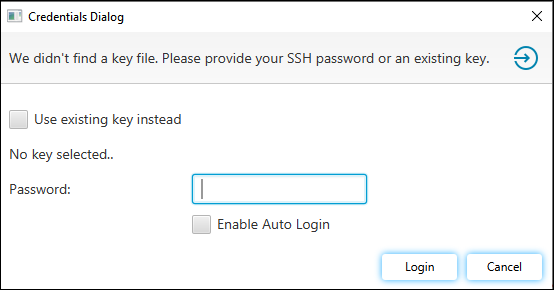
When connecting to your HPCBOX cluster for the first time, you will need to provide the username and password you used when creating the cluster. You will be prompted for your password and provided with an option to perform an auto-login for future connections. Upon enabling auto-login, we will be generating SSH authentication keys which will automatically be used for future connections.
Interactive Remote Desktop
ConnectApp allows users to work directly on their cluster using a secure remote desktop tool. This essential personal super-computing experience is one of the core advantages of using HPCBOX.
 Initiate a remote desktop connection to the cluster master.
 Reset your remote desktop. This action kills any currently active desktops and will kills all applications running within that desktop.
The remote desktop provides a connect/disconnect model, meaning, the remote desktop state is maintained if the cluster head/login node remains powered-on. This allows users to leave critical tasks and applications running while not connected to their HPCBOX cluster.
Windows Desktop Session
Since version 1.0.6, users can connect directly to a Windows worker over RDP using the Windows Desktop Connect button. Note that, the master and Windows worker must have already been started and the Windows worker RDP session requires separate credentials to establish a connection.

File Transfer
As of this release of HPCBOX, the winscp tool is bundled along with the application on Windows for file transfer to and from the cluster. The tool can be invoked using the  button.
On Linux, please make sure FileZilla is installed on your client machine. This can be installed from your OS repository.
Cluster Info
Information about the cluster and the state of the workers can be obtained using the (Info)  button.
An example of a cluster is provided below:
The cluster has two compute type nodes associated with it.
button.
An example of a cluster is provided below:
The cluster has two compute type nodes associated with it.

Debugging and Log
Debugging and additional logging information can be accessed with the  (Log) button. Please save the log contents and provide the file when contacting HPCBOX support.