Preparing
Generally, HPCBOX is deployed directly from your Cloud Resource provider's marketplace, for example, Azure Marketplace or Google Cloud Marketplace.
For some pricing models, only BYOL deployment is supported on Google Cloud.
In some cases, you will need to contact HPCBOX support at boxhelp[at]drizti.com or at HPCBOX Support to enable the HPCBOX deployment assets to appear as a private offer within your Cloud Subscription.
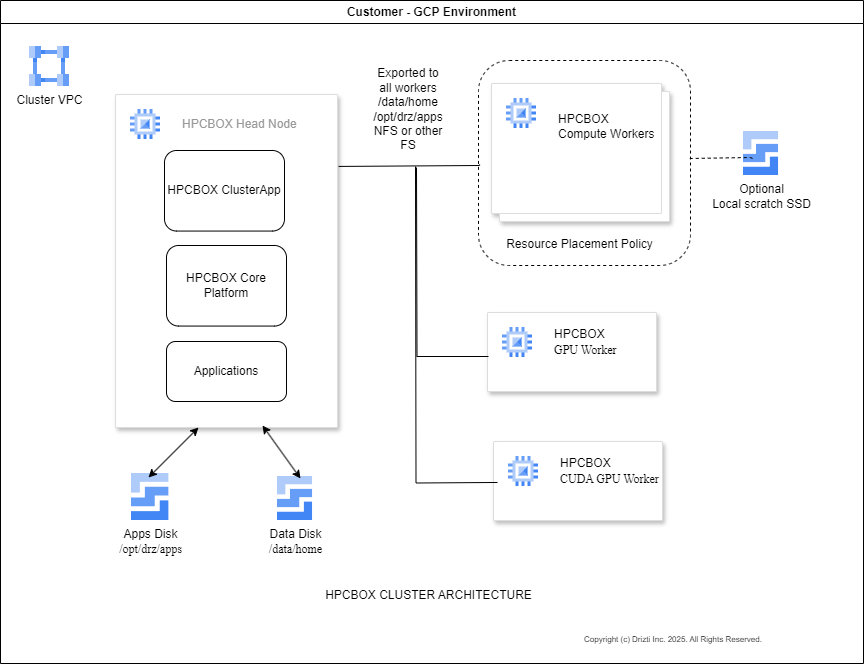 |
|---|
| HPCBOX Architecture on Google Cloud |
Google Cloud
The following pre-requisites need to be completed before deploying HPCBOX into a Google Cloud Project. Ideally, HPCBOX is deployed into a new and empty Google cloud Project.
The following steps are to be used when deploying our Terafform (TF) templates into a project which has an existing VNET, Subnet, Service Accounts etc. which are pre-created.
VNET and subnets
- The defualt VNET/VPC which is used in the Terraform templates is called hpcbox-devel-vnet.
- The default Subnet used in the Terraform templates is called clusters-subnet.
- Create firewalls in the VNET
- Allow SSH access from required external IP addresses.
- Create a Firewall rule in the VNET which allows "All protocols" with Source Range set to the subnet range in which HPCBOX will be deployed.
The head/management node and all login nodes on the HPCBOX cluster will have publicly accessible static IP addresses.
Administration user
Identify the user account that should be the initial Administrator for the HPCBOX cluster. HPCBOX supports both SSH Metadata Keys and OS Login for authenticating the first Admin user.
If planning to use OS Login, follow documentation here to create SSH-Keys for
the first Admin user who'll be configured as the value for the variable adminUserName in the Terraform templates. Note that, when using OS Login
and setting up SSH Keys with gcloud, the response returns the username that is created for the OS. For example, a non Google account could have
an account like ext_drz_drizti_com where the user is drz[at]drizti.com. This is the account which should be set as the value
of adminUserName in the Terraform templates.
Users who have a prefix of ext_ to their OS Login user name must have the role Compute OS Login External User at the organization level.
Also, make sure enableCloudLogin is set to TRUE in the Terraform templates.
During deployment, the user account set as the value of the Terraform template variable adminUserName is the only one who will be able
to connect to the head/admin node. Please follow these instructions
to allow other users access to the head/management node.
Configuring the Administrator user account:
- OSLogin
- SSH Keys
- When deploying HPCBOX using Terraform templates, set the value of the variable enableCloudLogin to TRUE.
- Set up SSH Keys for the Administrator user following documentation here
- Set the Administrator username as the value of adminUserName in the Terraform templates.
- The user should have the following roles as described in the OS-Login documentation.
- Compute OS Login User (For org users)
- Compute OS Login External User at the Organization Level(For users who are external and have an
ext_prefix to their OS-Login user name) - Service Account User since our head node has a service account.
- When deploying HPCBOX using Terraform templates, set the value of the variable enableCloudLogin to FALSE (default).
- Generate and set up SSH Keys for the Administrator user at the Google Project level following documentation here
- Set the Administrator username as the value of adminUserName in the TerraForm templates.
Enable API
Enable the following APIs using "APIs and Services" within your Google Cloud Project:
- Cloud Resource Manager API
- Infrastructure Manager API
Service Account for Management/Head Node
-
Create a new service account in the Google Cloud project following this documentation. As an example, this service account may be called as hpcbox-mgmt-sa
-
Assign the following Roles to the Service Account:
- Compute Instance Admin (v1)
- Compute Network Admin
- Deployment Manager Editor
- Monitoring Viewer
- Service Account Token Creator
- Service Account User
- Cloud Infrastructure Manager Admin
- Cloud Infrastructure Manager Agent
The service account created above is the one which would be configured as the value of the variable head-node-service-account in the Terraform deployment template for HPCBOX. For example, if the name of your project is hpcbox-001, the service account would be [email protected]
Service account for executing gcloud Infra Manager
Create a Service Account in the project called something like hpcbox-001-infra-manager. This will end up with an Email like [email protected]
Assign following roles to this service account at the project level:
-
compute instance Admin (v1)
-
cloud infrastructure Management agent
-
compute network admin
-
service account user
-
This service account must also have Compute Image User role on the images in drizti-public projects.
Please contact HPCBOX Support to get this access enabled. Follow the instructions here and provide us with the Google APIs Service Account and the Service account for executing gcloud Infra Manager which you created earlier. This allows us to enable your access to compute, CUDA and OpenGL HPCBOX images. Additionally, provide us with your Google Cloud Project ID (Not Name!) for us to provide you with an Activation Key for HPCBOX.
The infra manager service account created must have access to use the service account created for the head node, example [email protected].
This infra service account is the one that will be impersonated by the deployment user when using the gcloud infra-manager commands.
User executing the Deployment
The user executing the gcloud command to deploy HPCBOX with the Terraform templates must have the following roles at the project level:
- Service Account Token Creator
- Service Account User
This user who is deploying must also have access to use the service account created for the infra-manager, eg: [email protected].