Flow Controls
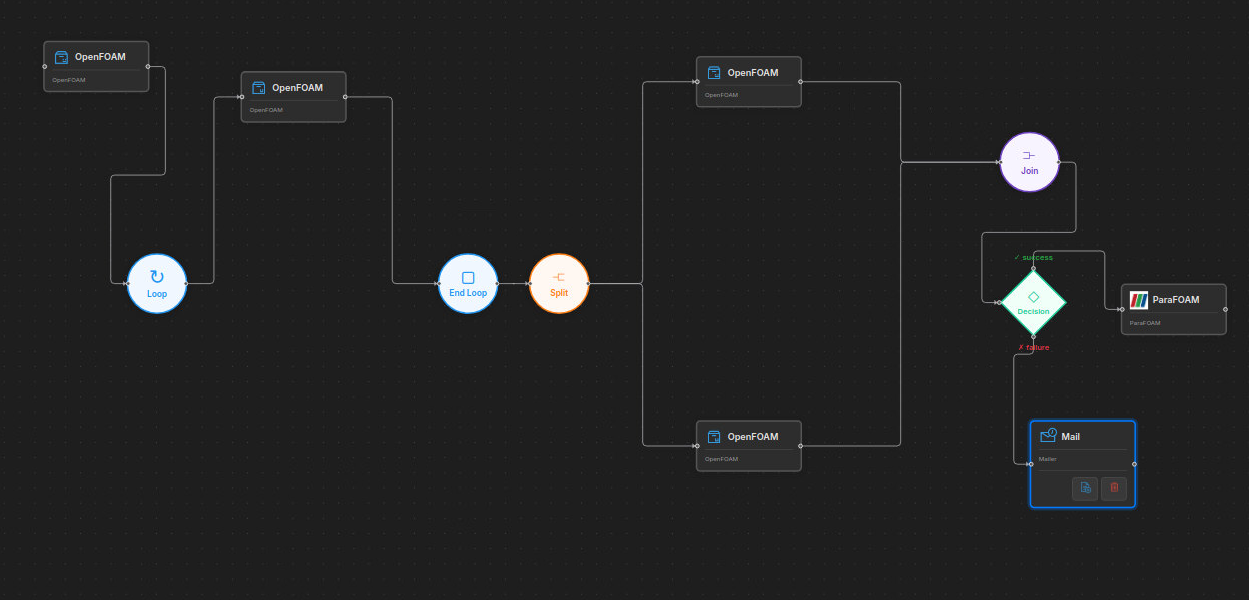
HPCBOX workflows support advanced flow control nodes that go beyond simple linear step sequences. These allow you to model real-world simulation pipelines with parallel execution, conditional branching, and iterative loops.
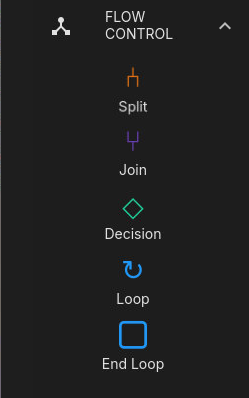
Decision Nodes (Conditional Branching)
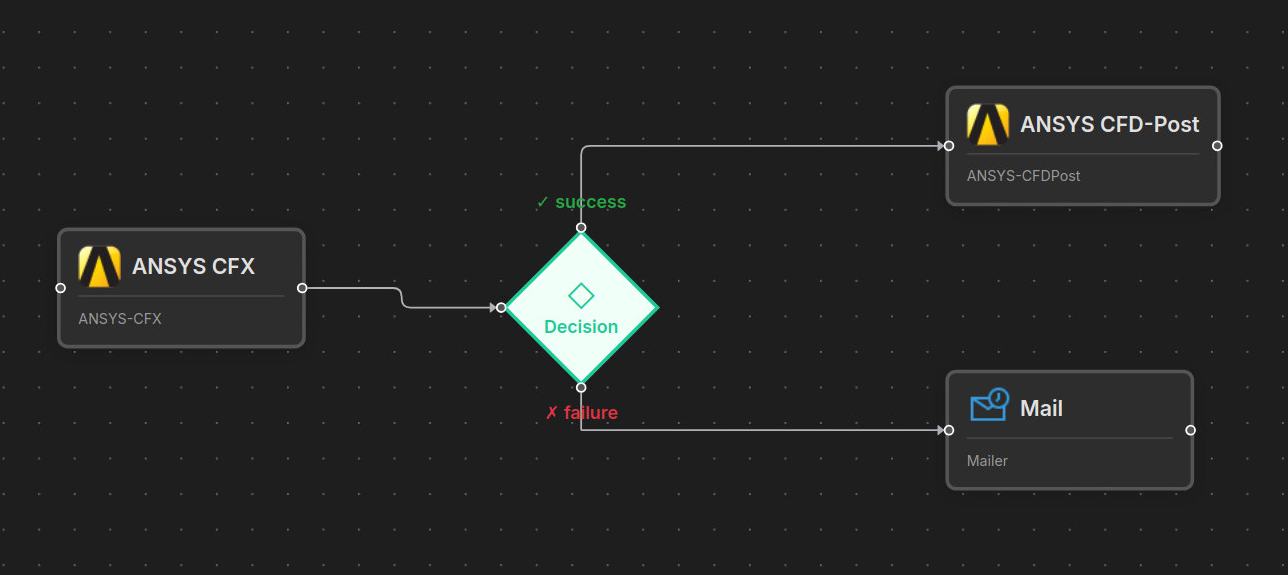
A decision node evaluates the exit status of the preceding step and branches the workflow into success or failure paths.
Use cases:
- Send a success notification email if a solver completes, or a failure alert if it crashes
- Run a fine-mesh refinement only if the coarse mesh converged
- Skip post-processing if the simulation failed
Split / Join (Parallel Execution)
Split and join nodes allow multiple workflow branches to run in parallel.
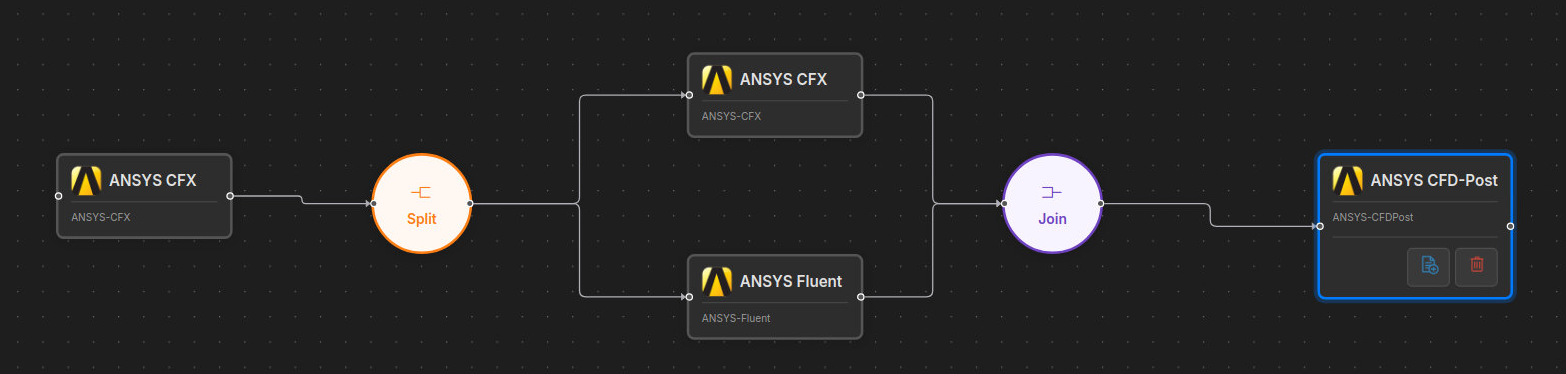
- Split node — fans out to two or more parallel branches, all starting simultaneously
- Join node — waits for all incoming branches to complete before continuing
Use cases:
- Run multiple solver configurations in parallel and wait for all to finish before post-processing
- Run independent pre-processing steps concurrently to save wall-clock time
Loop Nodes (Iterative Execution)
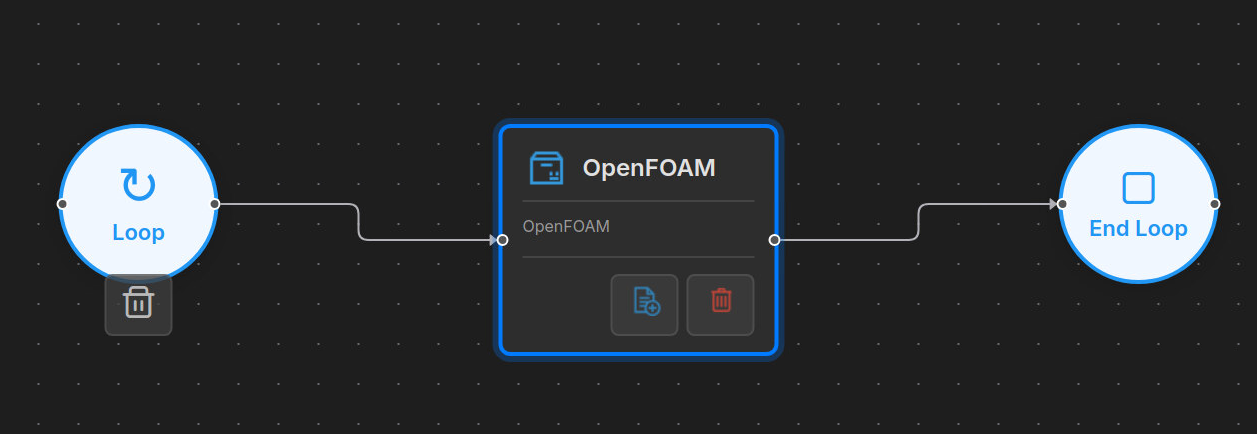
Loop nodes repeat a sequence of steps over a set of items — numeric ranges, comma-separated lists, or lines from a file.
| Mode | Items Format | Example |
|---|---|---|
| Range | start-end | 1-10 — iterates 1, 2, 3, ..., 10 |
| List | item1,item2,item3 | coarse,medium,fine — iterates over each value |
| File | /path/to/file.txt | One item per line, read at runtime |
Steps inside the loop body can use the $DRZ_ITER_ITEM variable to parameterize runs per iteration.
Combining Flow Controls
Flow control nodes can be combined to build complex workflows. For example, a loop can contain a split/join block for parallel execution within each iteration, or a decision node can branch into different paths inside a loop body.
Validation
The workflow editor validates flow control structures automatically before saving, exporting, or executing. You can also validate manually using the Validate button in the toolbar.

For detailed usage instructions, configuration options, and scripting behavior, see Flow Control.