MCP Server
The MCP Server is an experimental feature and is under active development.
HPCBOX includes a Model Context Protocol (MCP) server that lets external AI agents create and manage workflows on your cluster. This means you can use your preferred AI tool — Claude Code, VS Code Copilot, Cursor, or any MCP-compatible client — to build HPCBOX workflows.
What is MCP?
The Model Context Protocol is an open standard for connecting AI agents to external tools and data sources. Think of it as a USB port for AI — any MCP-compatible agent can plug into any MCP server and use its tools.
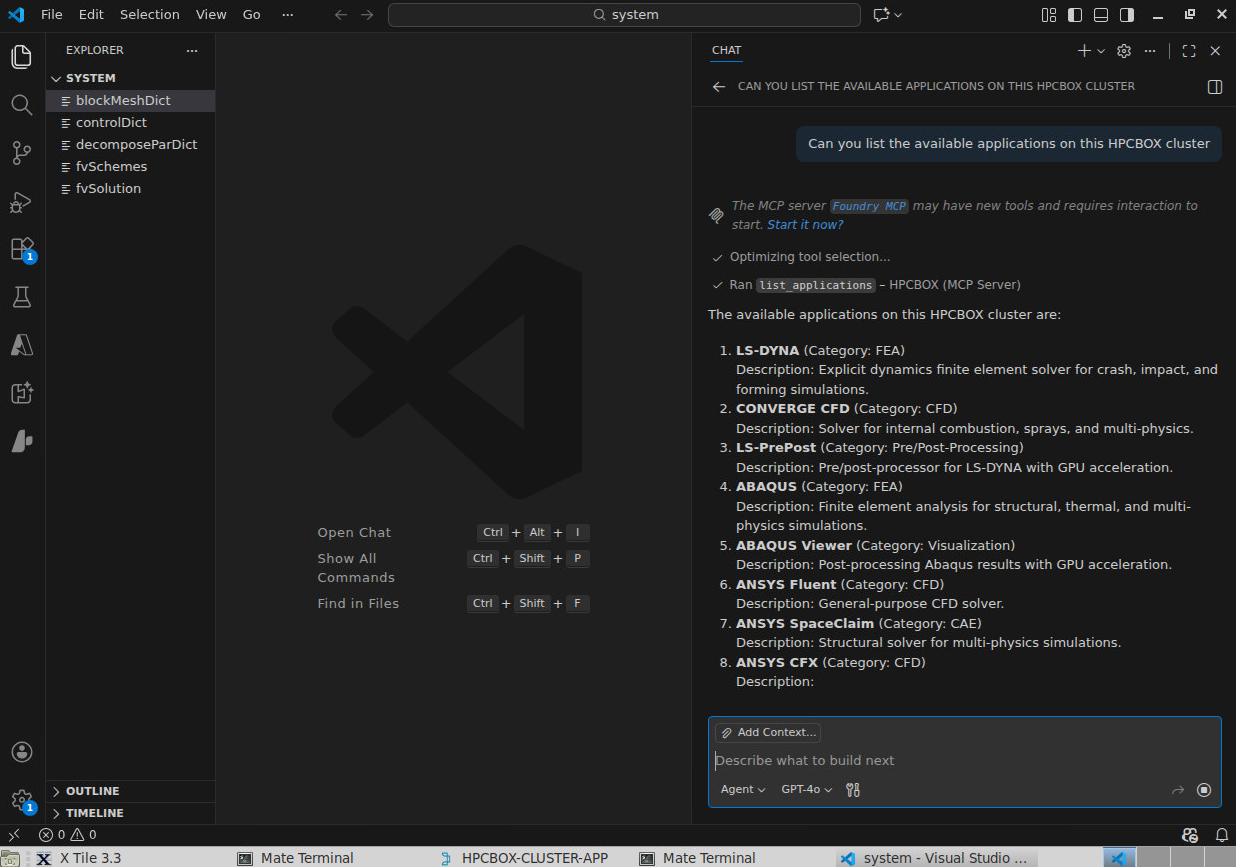
The HPCBOX MCP server exposes workflow management tools via the stdio transport. AI agents connect to it, discover the available tools, and call them to list applications, create workflows, validate structures, and more.
Available Tools
| Tool | Description |
|---|---|
| ListApplications | Discover available HPC applications and their configurable options |
| GetApplicationDetails | Get full option schema for a specific application |
| SearchWorkflows | Find saved workflow templates by name or project ID |
| GetWorkflowDetails | Read the full contents of a workflow file |
| CreateWorkflow | Build a new workflow and save it to the inbox |
| UpdateWorkflow | Modify an existing workflow file |
| ValidateWorkflow | Check workflow structure before creating or updating |
| GetWorkflowGuide | Get the .hpcbox JSON format documentation |
| GetExample | Get example workflows (linear, loop, split-join, decision) |
Setting Up
Prerequisites
The MCP server binary is included with HPCBOX ClusterApp. No additional installation is required.
Connecting from Claude Code
Add the following to your .mcp.json file in the project root, or run the CLI command:
claude mcp add --transport stdio hpcbox -- /path/to/HpcboxMcpServer
Or manually create .mcp.json:
{
  "mcpServers": {
    "hpcbox": {
      "command": "/path/to/HpcboxMcpServer",
      "args": []
    }
  }
}
Connecting from VS Code (Copilot Chat)
Add to .vscode/mcp.json in your project:
{
  "servers": {
    "hpcbox": {
      "type": "stdio",
      "command": "/path/to/HpcboxMcpServer"
    }
  }
}
Remote Access via SSH
The MCP server can be accessed remotely by wrapping the command in SSH:
{
  "mcpServers": {
    "hpcbox": {
      "command": "ssh",
      "args": ["user@cluster", "/opt/drz/apps/hpcbox/.../HpcboxMcpServer"]
    }
  }
}
Example: Creating a Workflow from a Tutorial
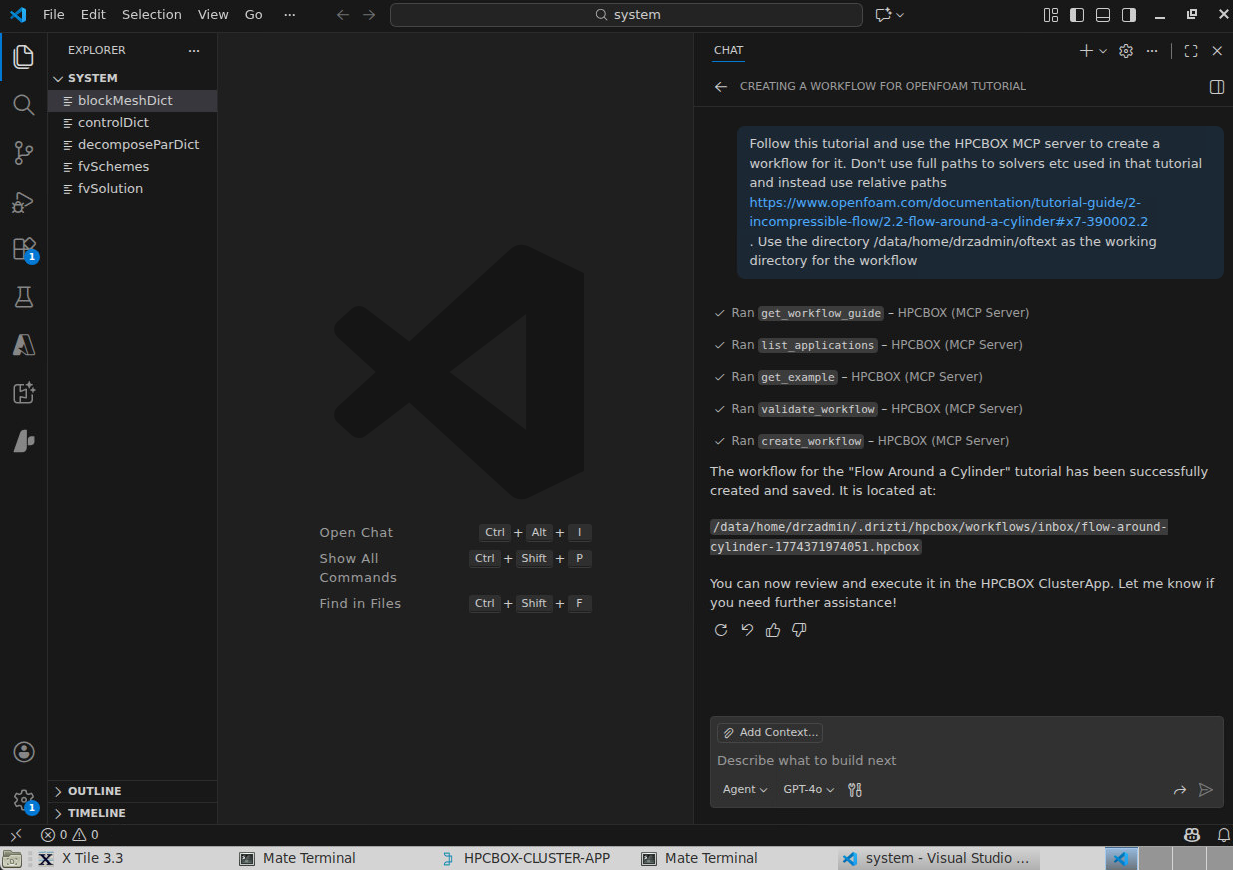
With the MCP server connected, you can ask your AI agent to read an online tutorial and build a corresponding HPCBOX workflow:
"Read this OpenFOAM tutorial at https://www.openfoam.com/documentation/tutorial-guide/... and create an HPCBOX workflow for it"
The agent fetches the tutorial, identifies the simulation steps (meshing, solving, post-processing), maps them to HPCBOX applications, and creates a validated workflow — all through the MCP tools.
Custom Applications
Custom applications created via the Application Definition Builder are automatically discovered by the MCP server. No additional configuration is needed — the server scans the same application directories and includes custom apps in ListApplications results.
Data Privacy
The MCP server itself does not communicate with any LLM provider. It is a local tool server that reads and writes files on the user's machine. The external AI agent (Claude Code, VS Code Copilot, etc.) is the one that sends data to an LLM — that is governed by the agent's own privacy policies.
The data exposed through MCP tools includes:
- Application names, categories, and option schemas
- Workflow file contents (step names, configurations, flowchart structure)
- File paths on the cluster
No simulation data, input files, or result files are exposed through MCP tools.