Application Definition Builder
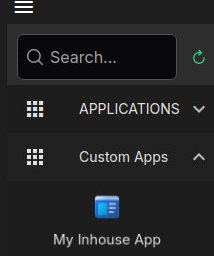
The Application Definition Builder tool allows you to create custom application definitions for the HPCBOX workflow editor. Custom applications appear alongside the built-in applications (OpenFOAM, ANSYS Fluent, etc.) in the sidebar and can be dragged into workflows just like any other step.
Opening the Tool
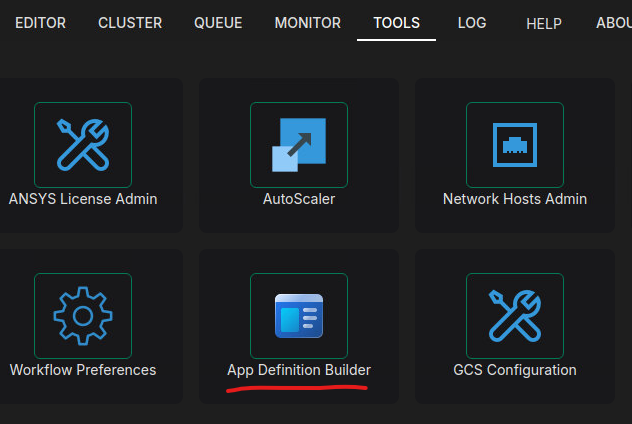
Navigate to the Tools page in ClusterApp and click on the Application Definition Builder card.
Creating a Custom Application
A custom application definition consists of three sections: App Identity, Run Script, and Options.
App Identity
The identity section defines how the application appears in the workflow editor sidebar.
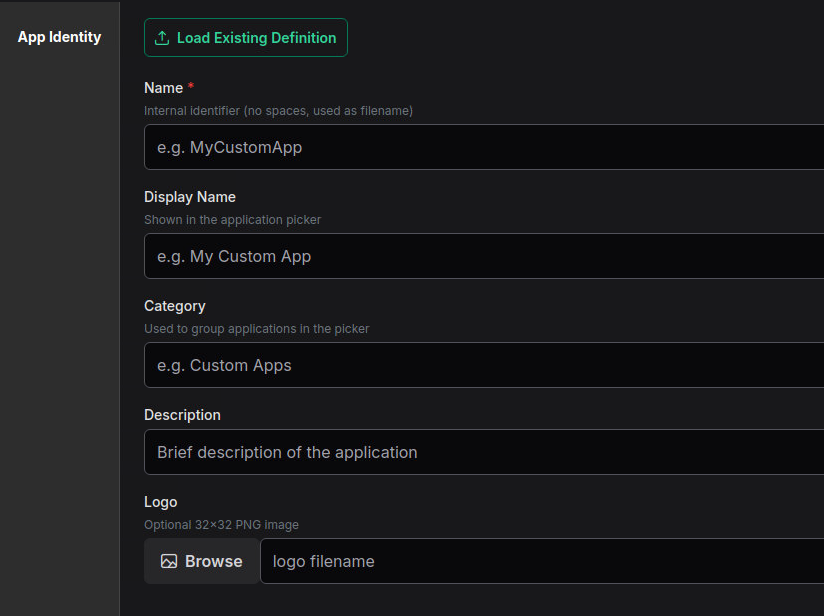
| Field | Required | Description |
|---|---|---|
| Name | Yes | Internal identifier (no spaces). Used as the filename for the definition. |
| Display Name | No | Human-readable name shown in the application picker. Defaults to the name. |
| Category | No | Used to group applications in the sidebar. Example: Custom Apps |
| Description | No | Brief description shown in the step properties panel. |
| Logo | No | Optional 32x32 PNG image. Use Browse to select an image file. |
Run Script
The run script section specifies the bash script that executes when this step runs in a workflow.
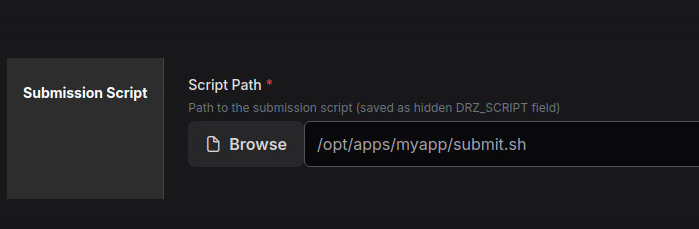
| Field | Required | Description |
|---|---|---|
| Script Path | Yes | Absolute path to the execution script on the cluster. |
The script receives all workflow environment variables (DRZ_WD, DRZ_PROJECT, DRZ_STEP_NAME, and any custom options) as environment variables.
A good practice is to place your custom scripts under /opt/drz/apps/hpcbox/ext/clusterapp/apps/<appname>/ alongside the built-in applications.
Generally the scripts which are provided are wrapper scripts which use the passed in variables and generate a script compatible with the underlying job scheduling system. However, light weight operations which can run on the login/head nodes can be included if they are not CPU or memory intensive.
Options (Custom Environment Variables)
The options section lets you define custom environment variables that the user can configure in the workflow step properties panel. Each option becomes an environment variable that is exported before the run script executes.
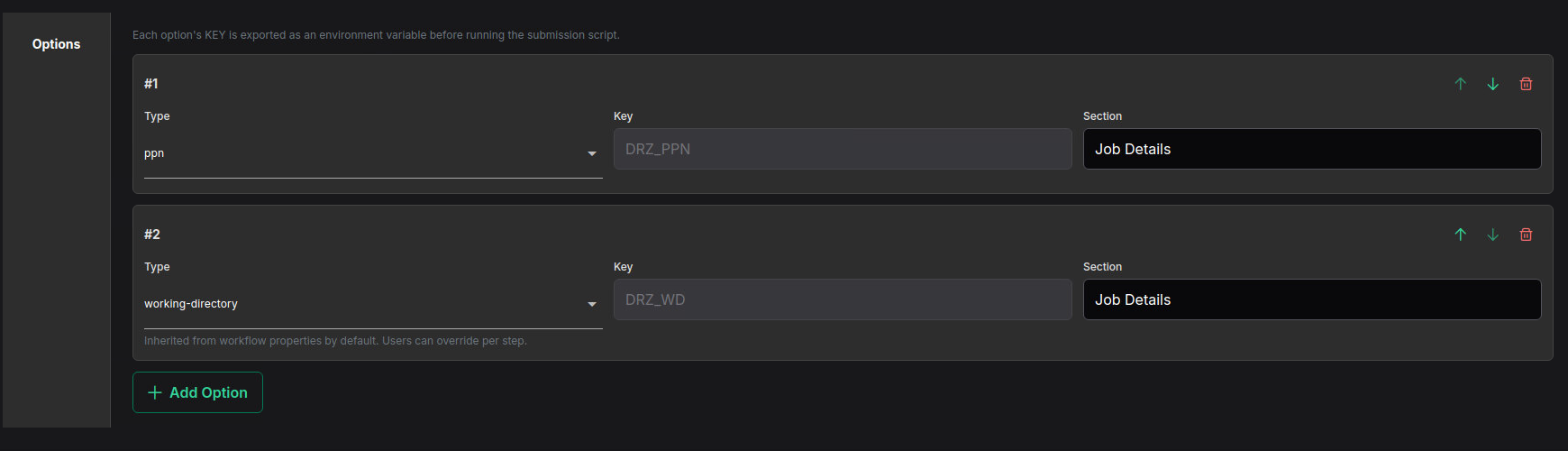
To add an option, click Add Option and fill in:
| Field | Shown for | Description |
|---|---|---|
| Type | All | The input widget type (see table below). |
| Key | All | Environment variable name (e.g., DRZ_NCPU, INPUT_FILE). Auto-filled for composite types. |
| Label | Most types | Human-readable label shown next to the input field in the step properties panel. |
| Section | All | Groups options under a heading in the step properties panel (e.g., Job Details). |
| Default | Most types | Pre-filled value that the user can override per step. |
| Required | Most types | When checked, the workflow editor will require the user to provide a value. |
| Choices | select only | Comma-separated list of allowed values (e.g., v1, v2, v3). |
| Min / Max / Step | number only | Numeric constraints for the input spinner. |
Option Types
| Type | Key (auto-filled) | Description |
|---|---|---|
text | — | Free-form text input. |
number | — | Numeric input with optional min/max/step constraints. |
password | — | Masked text input (value not shown in the UI). |
file | — | File browser input. |
directory | — | Directory browser input. |
select | — | Dropdown with predefined choices. |
checkbox | — | Boolean toggle (exported as true or false). |
textarea | — | Multi-line text input. |
hidden | — | Not shown in the step properties panel. Useful for internal constants. |
working-directory | DRZ_WD | Special type — inherited from Workflow Properties by default. Users can override per step. |
project-id | DRZ_PROJECT | Special type — inherited from Workflow Properties by default. Users can override per step. |
description | DRZ_DESCRIPTION | Step description field. |
ppn | DRZ_PPN | Processors-per-node selector. |
ncpu | DRZ_NCPU | CPU count input. |
The composite types (working-directory, project-id, description, ppn, ncpu) auto-fill their Key and do not show a Default field because their values are either inherited from workflow properties or have built-in defaults.
Loading an Existing Definition
Click the Load Existing Definition button in the App Identity section to load and edit a previously saved application definition. This opens a file browser that allows you to select a .json definition file.
Saving
Click the Save Definition button at the bottom of the tool.
- Administrators can choose to save to the Central (all users) location or their Personal directory.
- Non-admin users can only save to their personal directory.
| Location | Path |
|---|---|
| Central (all users) | /opt/drz/apps/hpcbox/ext/clusterapp/apps/<appname>.json |
| Personal (me only) | $HOME/.drizti/hpcbox/apps/<appname>.json |
You can also click Preview JSON before saving to inspect the generated definition file.
After saving, the new application appears immediately in the workflow editor sidebar under its configured category.
AI Assistant and MCP Server Integration
The AI Assistant and MCP Server are experimental features.
HPCBOX includes an AI Assistant (embedded in the workflow editor) and an MCP Server that allows external AI agents (Claude Code, VS Code Copilot, etc.) to create and manage workflows. These tools need to know about available applications so they can build valid workflows with the correct options.
Custom applications created via the App Definition Builder require no extra steps for AI integration. The MCP Server and embedded AI Agent automatically discover custom app definitions from the same directories where they are saved:
| Location | Source |
|---|---|
/opt/drz/apps/hpcbox/ext/clusterapp/apps/ | Admin-installed custom apps (Central) |
~/.drizti/hpcbox/apps/ | User-created via App Definition Builder (Personal) |
When the AI agent calls ListApplications, it scans these directories and reads each .json definition file, including the app's name, description, and all option fields. This means your custom application is immediately available for AI-assisted workflow creation as soon as you save it.
Example: Creating a Custom In-House Application
This example walks through creating a custom application definition for an in-house code.
Step 1: Define the Identity
- Name:
inhouseapp01 - Display Name:
In House App - Category:
Custom Apps - Description:
Custom In House App
Step 2: Set the Run Script
- Script Path:
/opt/drz/apps/hpcbox/ext/clusterapp/apps/inhouseapp01/run.sh
Create the run script on the cluster:
#!/bin/bash
# /opt/drz/apps/hpcbox/ext/clusterapp/apps/inhouseapp01/run.sh

TMPSCRIPT=`mktemp  $DRZ_WD/hpcbox/hpcbox_ansys_cfd_post.XXXXXXXXXX`

cat << EOF > $TMPSCRIPT
#$ -S /bin/sh
#$ -wd $DRZ_WD
#$ -j yes
#$ -o $JOB_ID.log
#$ -pe orte $DRZ_NCPU


mpirun -np "$DRZ_NCPU" inhouse01 -in "$INPUT_FILE" -log "$DRZ_WD/inhouseapp01.log"

EOF
chmod u+x $TMPSCRIPT
#qsub -terse $TMPSCRIPT
qsub -sync yes $TMPSCRIPT
Make it executable:
chmod +x /opt/drz/apps/hpcbox/ext/clusterapp/apps/inhouseapp01/run.sh
Step 3: Add Options
| Type | Key | Label | Section | Default |
|---|---|---|---|---|
ncpu | DRZ_NCPU | (auto) | Job Details | (auto) |
file | INPUT_FILE | Input File | Job Details | |
working-directory | DRZ_WD | (auto) | Job Details | (inherited) |
Step 4: Save and Use
Click Save Definition. The In House App application now appears in the sidebar under Custom Apps and can be dragged into any workflow.