Workflow Properties
Every workflow has a set of properties that apply to all steps unless individually overridden. These properties control the default working directory, project identification, and inter-step data passing.
Opening the Properties Dialog
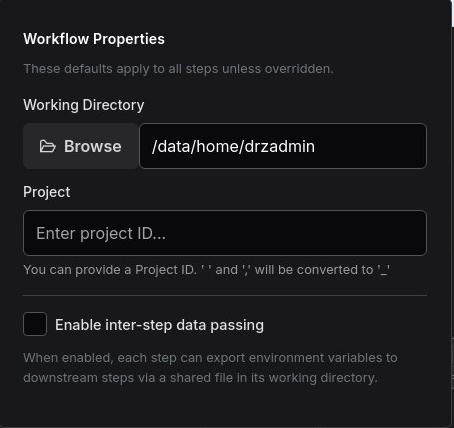
Click the Properties button (gear icon) in the workflow editor toolbar to open the Workflow Properties popover.

Properties
Working Directory (DRZ_WD)
The Working Directory sets the default DRZ_WD environment variable for all steps in the workflow. This is the directory where application scripts will execute and where output files are typically written.
- Click Browse to select a directory on the cluster.
- Defaults to the user's home directory (
$HOME). - Individual steps can override this by setting their own
DRZ_WDin the step properties panel.
# In generated scripts, this appears at the top:
export DRZ_WD="/data/projects/simulation_01"
Set the working directory at the workflow level to avoid configuring it on every step individually. Only override it on specific steps that need a different directory.
Project ID (DRZ_PROJECT)
The Project ID sets the DRZ_PROJECT environment variable, which can be used by application scripts for project tracking, output organization, or job accounting.
- This field is optional. Leave it empty if your workflow does not require project tracking.
- Individual steps can override this value in their step properties panel.
# In generated scripts:
export DRZ_PROJECT="CFD-2026-001"
Enable Inter-Step Data Passing
When checked, this option enables step environment files (drz_step_env.<stepname>) that allow steps to export variables to downstream steps. See the Inter-Step Data Passing guide for full details.
How Overriding Works
Workflow properties act as defaults. The environment variable layering order is:
- Workflow Properties —
DRZ_WDandDRZ_PROJECTset here apply to all steps. - Step Properties — if a step sets its own
DRZ_WDorDRZ_PROJECTin the step options panel, it overrides the workflow default for that step only. - Safety net — if
DRZ_WDis not set at either level, it falls back to the user's home directory.
Example: Mixed Working Directories
Consider a workflow with three steps where most steps use the same directory but one step needs a different location:
| Step | DRZ_WD Override | Effective DRZ_WD |
|---|---|---|
| MeshGenerator | (empty — uses workflow default) | /data/projects/sim01 |
| Solver | (empty — uses workflow default) | /data/projects/sim01 |
| PostProcess | /data/results/sim01 | /data/results/sim01 |
In this case, set the Workflow Properties working directory to /data/projects/sim01 and only override DRZ_WD on the PostProcess step.
Saving and Loading
Workflow properties are saved as part of the workflow file (.hpcbox). When you load a saved workflow or template, the properties are restored automatically. This includes the working directory, project ID, and the step data passing toggle.