Desktop Tool
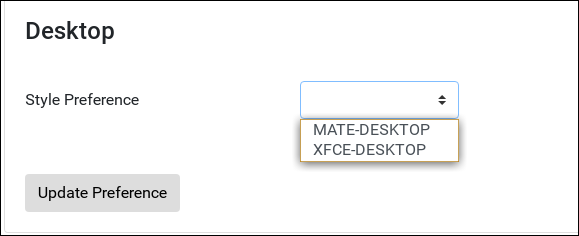
The Desktop tool can be used to change the preference of the desktop window manager. Options of MATE and XFCE are provided. By default, the MATE is configured as the desktop manager.
Users must reset your desktop using ConnectApp for changes to take effect.
Changing Desktop Preference
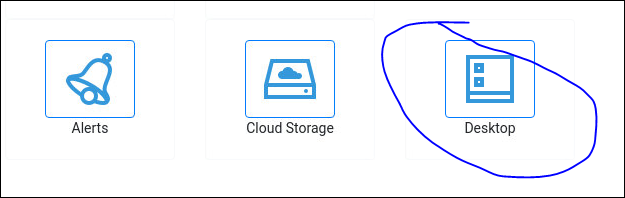
Select the Desktop tool from the Tools page
Select your preferred desktop from the dropdown and click on Update Preference.
XFCE Desktop
The default panel and menu appear at the top in XFCE Desktop. Additionally, a panel appears at the bottom of the screen. You can configure the desktop to remove the bottom panel and move the main panel to the bottom.
Removing bottom panel
Right-click on the top panel and bring up the Panel Preferences application.

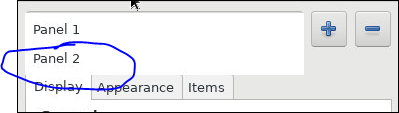
Select Panel 2 in the panel list and click on the – button.

Move top panel
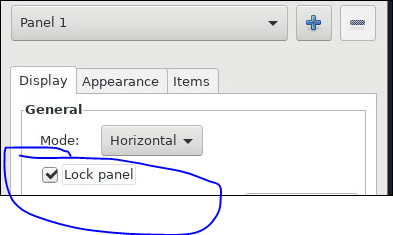
To move the top panel to the bottom, bring up Panel preferences, unlock the panel and move it to the bottom.

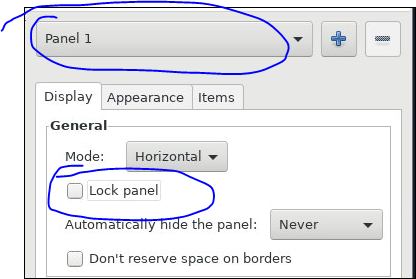
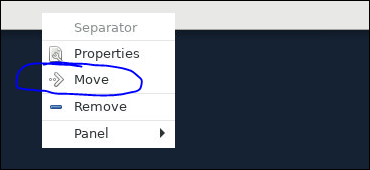
Move the panel to the bottom and Lock it back.

Accessing the Applications menu
The Applications Menu can be accessed by clicking on the XFCE icon in the panel.
